How to set up Ocarina of Time eye and mouth expressions
If an Ocarina of Time model walks but does not blink, the skeletal animation may be working correctly. Eye and mouth changes can be separate texture switches. This tutorial uses Adult Link to distinguish exported movement, recorded expression instructions and the images needed to reproduce them.
1. Check what this file actually includes
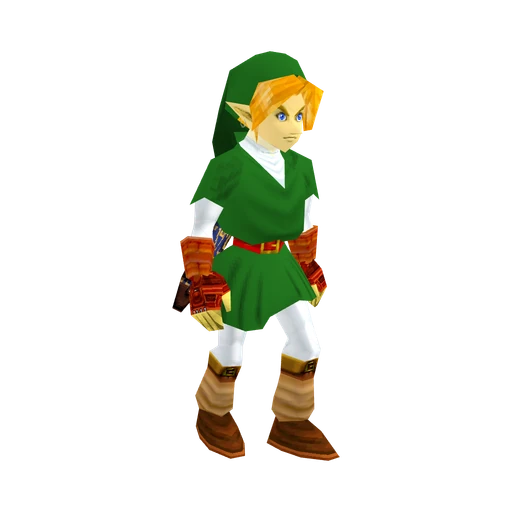
Open Adult Link’s technical information before downloading. This export retains source eye and mouth frame tracks as metadata. Ordinary glTF viewers do not execute those texture switches. The file also records an adult face texture bank with matching alternative eye and mouth images, but that does not mean every image is connected to an active material.
Do not generalize this coverage to every Ocarina of Time model. A texture count alone cannot tell you whether the matching expression images are present. Check the individual asset’s notes and the actual images in its download.


These three illustrations are unchanged image payloads from Adult Link’s GLB, enlarged with hard pixel edges. They correspond to gLinkAdultEyesOpenTex, gLinkAdultEyesHalfTex and gLinkAdultEyesClosedTex. They are texture images, not screenshots of an animated blink.
2. Locate the images before changing materials
- Import the GLB using the Blender import walkthrough and save a working copy. Pause the animation and frame the face so changes are easy to compare.
- Select the face mesh and inspect its material slots in the Shader Editor. Find the image texture used for the eyes. Record that material and image name before replacing anything.
- Check Blender’s image list for the alternative images. An importer may load only the images referenced by active materials. If an expected alternative is absent from that list, it may still be embedded in the GLB.
- For this exercise, open the open, half-closed and closed image files shown above and save copies locally. Load them as images in your working project. For other expressions, use a glTF-aware image extraction tool on your own downloaded GLB and preserve its image names.
3. Test one expression before building a blink
Duplicate the eye material for experimentation and assign that copy to the intended surface. Replace its eye Image Texture with the half-closed image, leaving its UV connection unchanged initially. Inspect the face from the front and side. Check eye position, scale, seams, transparency and color against the original material.
A direct image swap is a test, not a guaranteed conversion. The embedded source alternatives may use a different layout or color treatment from an active material. If the eyes move or colors do not match, compare image dimensions, UV coordinates, mapping nodes and material inputs before editing the image. Keep the original UVs and texture files available so you can undo the experiment.
4. Animate a discrete texture choice
Once each state aligns correctly, create one Image Texture node per eye state using the same verified UV mapping. Route the textures through a mix setup so an animatable numeric factor selects one complete image at a time. Keyframe the selection, then use Constant interpolation for those switching keys if you want discrete states rather than a gradual crossfade.
Start with an open → half-closed → closed → half-closed → open test. Choose your own test frame spacing and label it as an authored blink. The image sequence alone does not establish the game’s original blink timing. For a reconstruction, inspect the recorded expression instructions and the relevant clip timing instead of assuming a fixed universal frame rate.
Apply the same verify-first process to mouth images, with a separate selector if you need independent mouth changes. Do not assume that switching the eye material will also control the mouth, or that the same material arrangement is used by every character.
5. Check playback and export limits
Play the skeletal clip and your expression test together, then pause on each expression state. Confirm that eye switches affect only the intended surface. Save and reopen the project to check that the image references remain available.
A working Blender material animation does not guarantee that a new GLB export will preserve it. Ordinary glTF playback does not recreate arbitrary shader-node animation or the original game’s runtime expression logic. Test in the destination viewer or implement texture switching in the destination engine. Adult Link’s exported timing and lighting also differ from a full recreation of the game’s speed overrides, fog and rendering.